You can invite anyone on your team to Peasy so they can help manage inventory, place orders, and handle day-to-day tasks. There's no limit on how many people you can add.
How to Get There
Click Configure (gear icon) in the sidebar, then select Settings > Team.
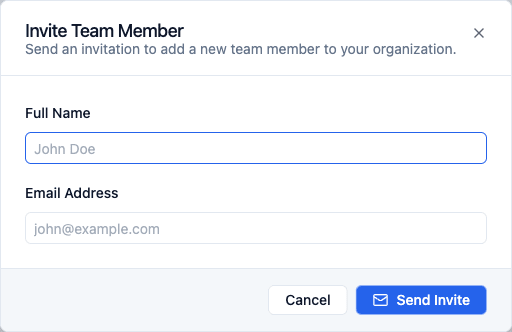
How to Invite Someone
- Go to Configure > Team in the sidebar.
- Click Invite New Member.
- Enter their full name and email address.
- Click Send Invite.
They'll receive an email with a link to join your team. Once they click it, they can sign up with a password or with Google — either way, they'll be added to your company automatically.
Managing Invitations
After you send an invite, it shows up as Pending on the Team page. From there you can:
- Resend the invitation if they didn't get it the first time
- Revoke the invitation if you change your mind (they won't be able to use the link anymore)
Once someone accepts the invite, they'll move from the Pending section to the Team Members list.
Viewing Your Team
The Team Members section shows everyone who has access to your Peasy account:
- Name and email for each person
- Last active — When they last signed in
- You — Your own account is always listed first
Removing a Team Member
If someone leaves your team or no longer needs access:
- Find their name in the Team Members list.
- Click the menu icon (three dots) next to their name.
- Select Remove from team.
- Confirm the removal.
They'll lose access immediately but no data will be deleted.
Good to Know
- Everyone on the team sees the same data — inventory, orders, vendors, customers, and settings.
- Roles and permissions (limiting what specific people can do) are coming soon. For now, all team members have full access.
- You can't remove yourself from the team.
Related
- Business Settings — Company name, logo, and emails
- Navigating Peasy — Learn your way around