Peasy keeps track of everything you have in inventory — how much, where it is, and when it changed. The Inventory section in the sidebar is where you go to browse your catalog, count inventory, review logs, and move items between locations.
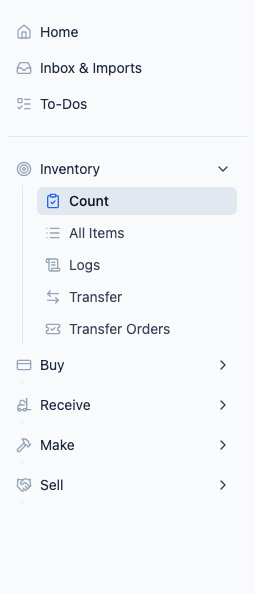
What's in the Inventory Section
- Count — Do physical inventory counts card-by-card. Pick a location and a count mode (Reset, Add, or Subtract), type in what you see on the shelf, review the resulting quantities, and confirm. You can also import counts in bulk from a spreadsheet or export current inventory as a CSV. This is the default page for the Inventory section.
- All Items — Browse Buy, Sell, and Conversion variants, plus Make variants that have a supplier, in one neutral catalog, with stock levels and progress bars. Click any item to open a detail panel where you can see per-location quantities, make inline adjustments (add, subtract, reset, or transfer between locations), and start restocking actions like creating a purchase order or receiving items. You can save filter, sort, and location presets as named views for quick access.
- Logs — See a complete log of every inventory change — receives, sales, manual adjustments, transfers, and production. Think of it as your audit trail. Each entry shows the transaction reference (e.g. "PO #456", "WO #123") so you can quickly trace what caused a change. Supports saved views for frequently used filter setups.
- Transfer — Stage transfers by picking a destination, entering quantities across items, and submitting. Peasy groups your pending transfers by source → destination and creates formal transfer orders when you submit.
- Transfer Orders — Track and manage the transfer orders you've created. Update status, ETA, shipping carrier, and tracking number as the transfer moves from created to sent to received.
Make variants without a supplier, including building blocks, are managed from Make > Items to make.
Where to Check Stock Levels
The best place to check inventory depends on what you're looking for:
- Buy > Items to buy — See current stock for everything you purchase. The Inventory column shows on-hand quantity for each buy item. This is where you'll spend most of your time checking what needs reordering.
- Sell > Items to sell — See current stock for everything you sell to customers. The Inventory column shows on-hand quantity for each sell product. Helpful when creating sales orders or checking what's available to ship.
- Inventory > Count — Do physical counts (Reset, Add, or Subtract), or open the Import / Export menu and pick Import inventory counts to enter many counts at once in a spreadsheet view. The same menu has an Export current inventory option for downloading a CSV snapshot.
- Inventory > All Items — See stock levels for the variants in this catalog with progress bars showing how close each item is to its restock point. Click any item to open a detail panel with per-location breakdowns and inline adjustment options. Pick All locations in the location dropdown to roll totals up across every location.
For a detailed look at stock movements over time, see Inventory History. To understand what's committed vs. available, see Understanding Availability.
How Inventory Tracking Works
Peasy tracks inventory at the item level across all your locations. Here's the basic idea:
- You add items — Buy items, sell products, or production templates
- Inventory changes when you:
- Receive items against a purchase order
- Ship a shipment against a sales order (fulfillment)
- Mark a work order as done (production)
- Manually adjust the count — reset it, add to it, or subtract from it
- Transfer inventory between locations
- Peasy alerts you when inventory gets low
Every change is logged, so you always have a full history of what happened and when.
Key Concepts
Available Inventory
This is how much you currently have available. It updates in real time as you receive, fulfill, produce, transfer, or manually adjust.
Locations
If you have multiple warehouses, stores, or storage areas, inventory is tracked separately at each one. You can see totals across all locations or drill into one specific spot.
Units and Conversions
Items can have multiple units. For example, you might buy flour in 50-pound bags but count it in pounds. Peasy handles the math — when you receive one 50-lb bag, your inventory goes up by 50 lbs. See Understanding Items and Units for more.
Restock Points
You can set a Restock Point for each item — the minimum quantity you want to keep on hand. When available inventory drops below that number, Peasy flags the item so you know it's time to reorder.
How Peasy Tells You What's Low
Peasy surfaces low-inventory information in several places so you don't have to go looking:
- Buy > Items to buy filter tabs — The Low and Order tabs on the Items to buy page show items approaching or below their Restock Point. See Restock Points.
- Sell > Items to sell — The Items to sell page includes an Inventory column so you can see current levels for the products you sell. Sales orders also create pending allocations against your inventory. See Understanding Availability.
- Sidebar badges — A red badge on Buy > Items to buy shows how many items need ordering. A red badge on Make > Items to make shows templates with ingredient shortages.
- To-Dos — Click To-Dos near the top of the sidebar to see everything that needs attention in one place — items to buy, products to make, pending deliveries, and items due for a count. See To-Dos.
- Template gap alerts — If you use production templates, Peasy flags when you don't have enough ingredients to complete a run. See Template Gap Alerts.
Common Questions
What's the difference between on-hand and available quantity? On-hand is the total physical stock you have at a location. Available quantity is on-hand minus any stock that is committed or reserved — for example, items allocated to open sales orders.
How do I track inventory across multiple locations? Each item has separate quantities per location. You can view totals across all locations or filter to one specific location. Use transfers to move stock between locations.
Does Peasy support lot tracking? Yes. There's no setting to turn on — Peasy creates a lot record every time you receive a purchase order or complete a work order. You can view every lot for an item on the Lots tab of the item detail page, pick specific lots when fulfilling sales orders, and optionally turn on auto-FIFO lot assignment for Shopify orders. See Lot Tracking for the full walkthrough.
How do I fix an incorrect inventory count? Use an inventory adjustment to correct a single item — you can also make inline adjustments directly from the item detail panel on the All Items page. For a full reconciliation, run an inventory count to compare all items at a location against what is physically on the shelf.
What are parent items vs child items? A parent item is the product concept — for example, "Coffee." Children are the specific variants tied to it: buy items (how you purchase it), sell items (how you sell it), and the inventory unit (how you track stock). See Understanding Items and Units for more.
Good to Know
- Red badges on the sidebar tell you how many items need attention (need counting, running low, etc.).
- All inventory changes are tied to your user account, so you can see who made each change in the history.
Related
- Understanding Items and Units — How units and conversions work
- Counting Inventory — Step-by-step counting guide
- Understanding Availability — Available vs. pending inventory
- Restock Points — Low and Order views plus restock alerts
- To-Dos — Everything that needs attention in one panel
- Adjusting Inventory — Manual corrections, when to adjust vs. use another workflow
- Inventory History — Reviewing your audit trail