A building block is a template for an intermediate product — something you make as a step in your production process, then use as an ingredient in a finished good. Think of it like a sub-recipe: you make a batch of sauce, then use that sauce when assembling your final product.
Building blocks let you break complex production into manageable stages, track inventory of intermediate products, and schedule production across multiple steps.
When to Use a Building Block
Use a building block when you produce something that isn't sold directly but goes into other products. Common examples:
- Food & Beverage — Sauces, doughs, spice blends, marinades, syrups, or brines
- Manufacturing — Sub-assemblies, pre-mixed compounds, or partially assembled components
- Cosmetics & Supplements — Base formulas, tinctures, or pre-mixed blends
If you sell the product directly to customers, use a Finished Good template instead. If the item is an intermediate step in your production, a Building Block is the right choice.
How to Get There
Go to Make > Items to make in the sidebar.
Creating a Building Block Template
- Click + New Template.
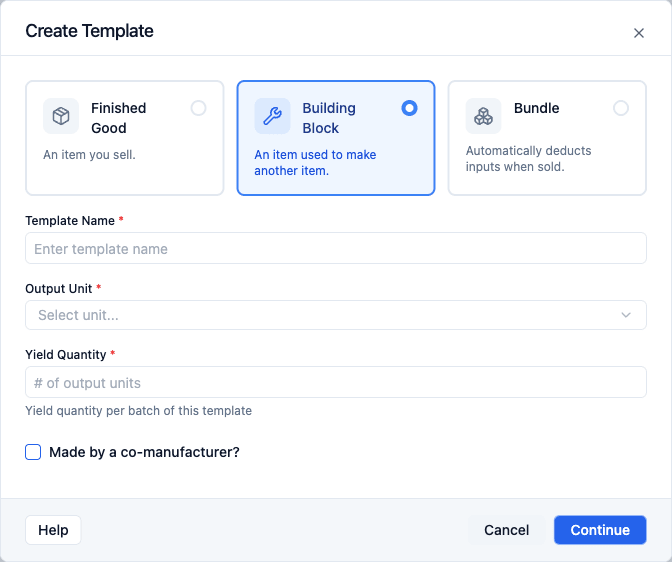
- Select Building Block as the template type.
- Enter the template name — What you're making (e.g., "BBQ Sauce Base," "Sourdough Starter," "Spice Mix").
- Set the output unit — The unit you'll measure this building block in (e.g., lbs, gallons, batches).
- Click Continue to create the template.
- Add ingredients — Select the items that go into this building block and enter the quantity needed for each.
Using a Building Block in Another Template
Once you've created a building block, it becomes available as an ingredient in other templates — just like any other inventory item.
- Open a Finished Good template (or another building block template).
- Click Add Input to add ingredients.
- Search for your building block by name and select it.
- Enter the quantity needed per batch of the finished good.
For example, if your "Honey Mustard" finished good needs 2 lbs of "Spice Mix" (a building block), add Spice Mix as an ingredient with a quantity of 2 lbs.
Building blocks can also use other building blocks as ingredients, letting you model multi-level production (e.g., Spice Mix → Sauce Base → Finished Product).
Dependent Work Orders
When you create a work order for a building block, Peasy shows you which finished goods use it. This lets you plan your entire production chain at once.
- Go to Make > Work Orders and click + New Work Order.
- Select a building block template and enter the number of batches.
- Peasy displays a Dependent Work Orders section showing every finished good that uses this building block.
- For each dependent template, enter how many batches you'd like to produce.
- A progress bar shows how many building block units are allocated vs. produced, helping you avoid over- or under-producing.
For example, if you're making 100 units of Spice Mix:
- Honey Mustard needs 2 units per batch — you schedule 20 batches (40 units)
- BBQ Sauce needs 3 units per batch — you schedule 15 batches (45 units)
- 85 of 100 units allocated — 15 units remain unallocated
Peasy will warn you if your dependent work orders would consume more building block units than you're producing.
How Inventory Works
Building blocks flow through inventory just like any other produced item:
- Complete the building block work order — Peasy deducts the raw ingredients and adds the building block to inventory (logged as "Production Output").
- Complete the finished good work order — Peasy deducts the building block (and any other ingredients) and adds the finished product to inventory.
This two-step process means you always know exactly how much of each intermediate product you have on hand.
Building Block vs. Finished Good
| Building Block | Finished Good | |
|---|---|---|
| Badge color | Blue | Orange |
| Output | Intermediate product (not sold directly) | Sellable product |
| Used as ingredient | Yes — appears in other templates | No |
| Dependent work orders | Yes — shows which finished goods need it | No |
| Tracks inventory | Yes | Yes |
| COGS calculated | Yes | Yes |
Building Blocks and Co-Manufacturers
Many businesses work with multiple suppliers in a chain — one company makes a component, another assembles the final product. Building blocks are perfect for this because each step maps to both a template AND a purchase order.
Example: Coffee in a Tea Bag
Say you work with two co-manufacturers:
- Ampersand infuses your coffee beans
- Steeped Coffee packages the infused beans into tea bags
Here's how to set it up:
- Create the intermediate item — "Infused Coffee Beans" as its own item family with a buy variant (vendor: Ampersand).
- Create a building block template — Inputs: raw coffee beans + infusion ingredients. Output: Infused Coffee Beans.
- Create the final item — "Coffee Tea Bags" as a separate item family with a buy variant (vendor: Steeped Coffee, if they handle packaging) or a sell variant (if you sell them directly).
- Create a finished good template — Input: Infused Coffee Beans (the building block). Output: Coffee Tea Bags.
The purchasing side: When it's time to produce, you place a PO with Ampersand for the infused beans. When you receive them, your Infused Coffee Beans inventory goes up. Then you either ship those to Steeped Coffee (using a transfer order if needed) or place a second PO with Steeped Coffee for the final packaging.
The key point is that each co-manufacturer should be set up as a separate vendor, and the intermediate product (Infused Coffee Beans) should have its own buy variant so you can place POs for it. This gives you a full audit trail of who made what, when, and at what cost.
Making More Than One Product
Each template produces one output. Peasy can't split a single work order into several different finished products, so how you model "more than one thing" depends on what you mean:
- A batch that yields several distinct products (for example, a main product plus a by-product). Set up a separate template for each output and run a work order for each. There is no single work order that produces two different items at once.
- A multi-stage process (a component that feeds a final product). Use a building block for the intermediate and add it as an input to the finished good — the pattern described above.
- A sellable multi-pack or variety pack (several finished items sold together, like a mixed case). Create a Finished Good template whose inputs are the individual finished items. See Creating Templates for the assembled and bundle options.
Good to Know
- Building blocks can nest — A building block can use another building block as an ingredient. This is useful for multi-stage production processes.
- Gap alerts apply — If a building block template is short on ingredients, you'll see gap alerts just like with finished goods. See Template Gap Alerts.
- Cost rolls up — Peasy tracks the cost of goods sold (COGS) for building blocks. When a building block is used in a finished good, its cost flows into the finished good's COGS automatically.
- You can filter by type — On the Templates page, use the filter button to show only Building Blocks or only Finished Goods.
- Building blocks appear in inventory — After a work order is completed, the building block shows up in your inventory like any other item, so you can count it and track it.
- Co-manufacturers need separate POs — If two companies are involved in making your product (one produces an ingredient, another does the final assembly), each step should be a separate purchase order to the respective vendor. The building block template tracks the production side; purchase orders track the purchasing side.
Related
- Making Overview — How the Make section works
- Creating Templates — General template setup and editing
- Managing Work Orders — Schedule and track production
- Template Gap Alerts — Understanding ingredient shortages